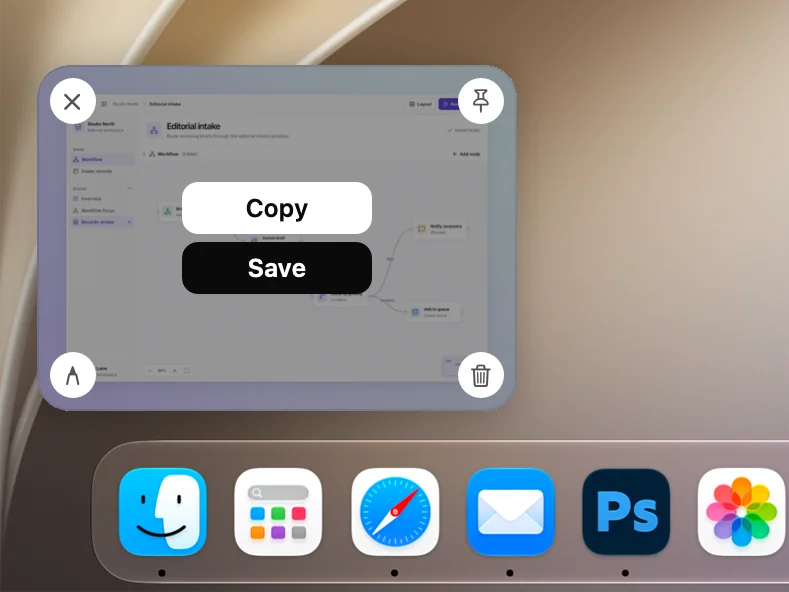
Drag it where it's needed.
Every capture waits at the edge of your screen. Drag it into Slack, an email or a document, or copy, save and pin it.
Use cases
See how to make a product demo, turn a release update into a GIF, redact a bug report and record a how-to video with palmscreen on Mac.
14 days, everything included · macOS 15+ · No account
Launch demo
Your launch video has a few seconds to show what's new. Record the main flow once, the way you'd show it to a friend, and palmscreen zooms in on each click so viewers can follow along even on a small screen.
Turn on your camera if you want a personal touch. The bubble sits in a corner and gets smaller while the screen zooms in, so it never covers what matters.
Release notes
A short clip says more than a paragraph in your changelog. Record the change in a few seconds, trim it on the timeline, and export it as a GIF that plays right in your release notes, docs or chat.
Choose the GIF size and frame rate before you export, so the file stays small enough for wherever it's going.
Bug report
“It doesn't work” is hard to fix. A screenshot of the error, with an arrow on the button you clicked, makes the problem clear in seconds.
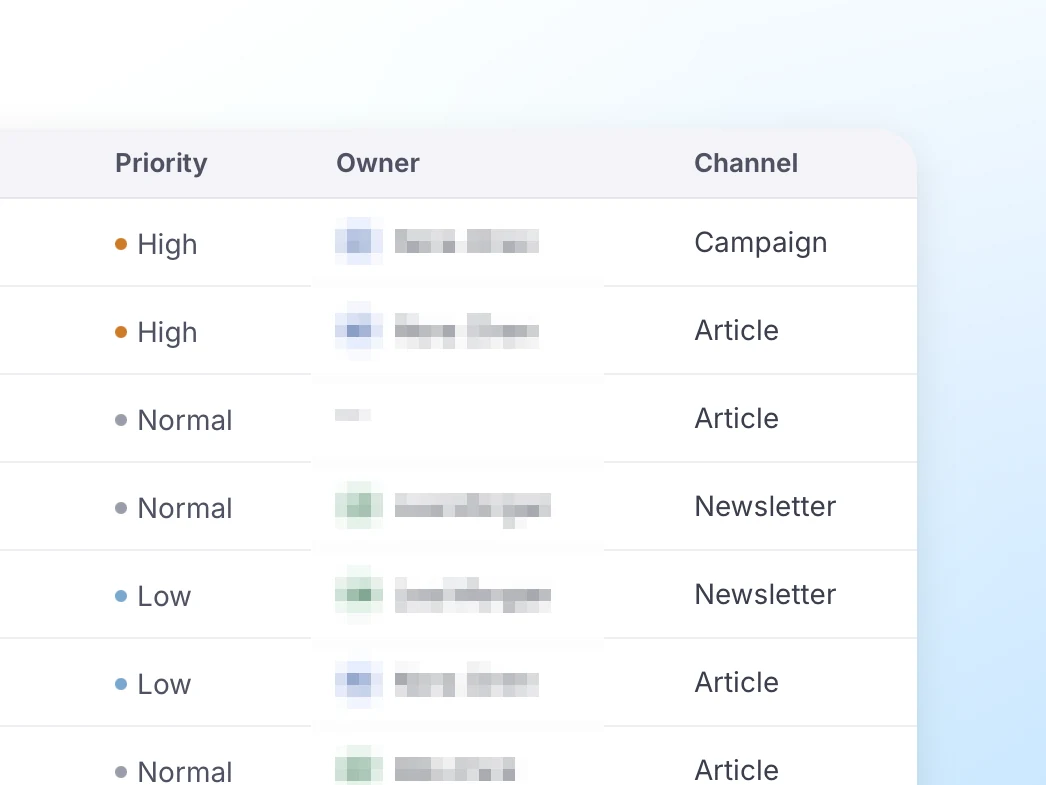
Before you send it, blur, pixelate or black out customer names, emails and keys. Then copy the image or drag it straight from the Quick Access card into your issue tracker.
How-to guide
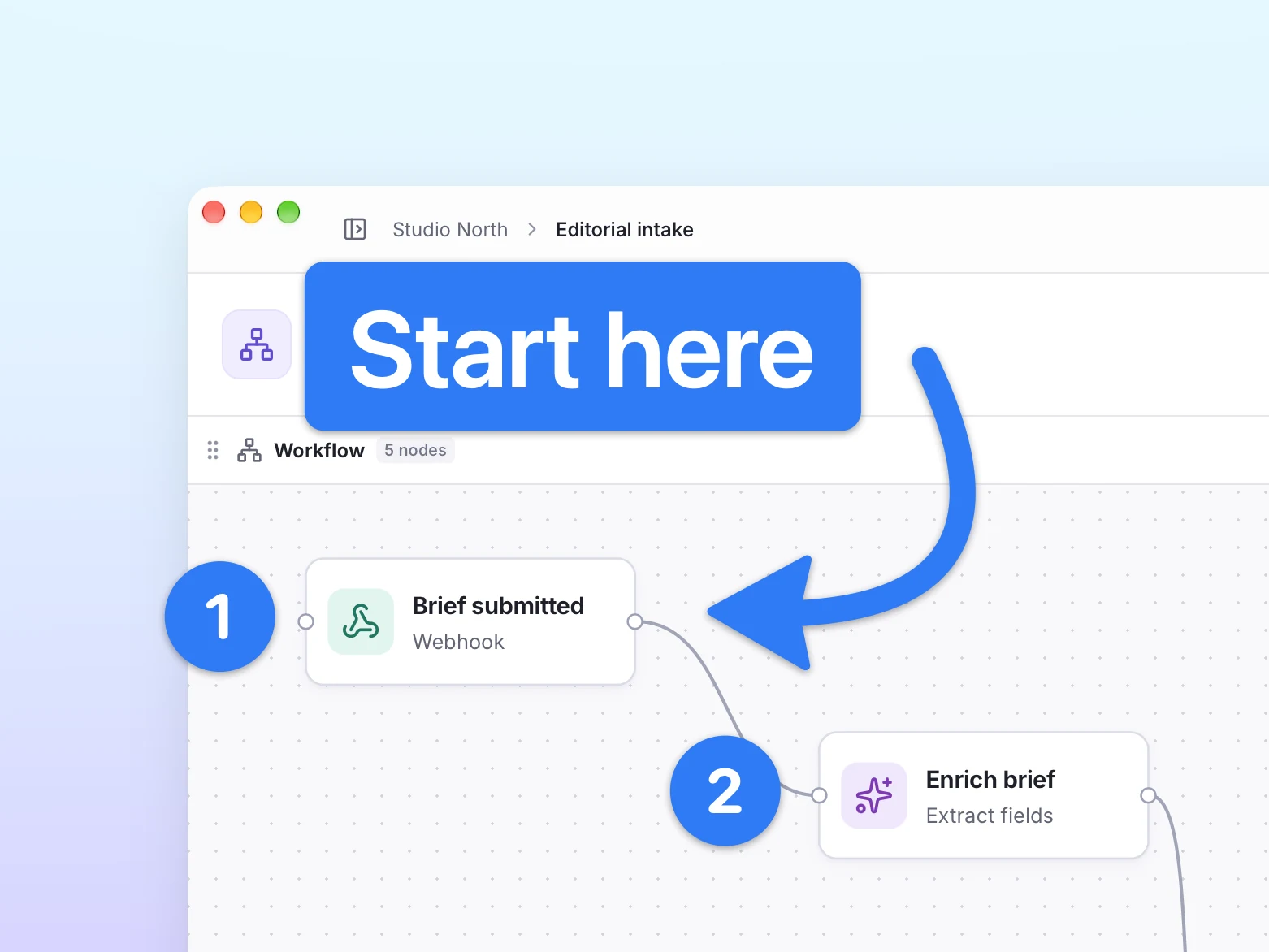
Onboarding docs and help articles work best when every step is visible. Mark up a screenshot with numbered steps, arrows and highlights so readers know exactly where to click.
For longer flows, record a short video instead. The zoom and smooth cursor make each step easy to follow, even for people who've never seen the app.
Every capture waits at the edge of your screen. Drag it into Slack, an email or a document, or copy, save and pin it.
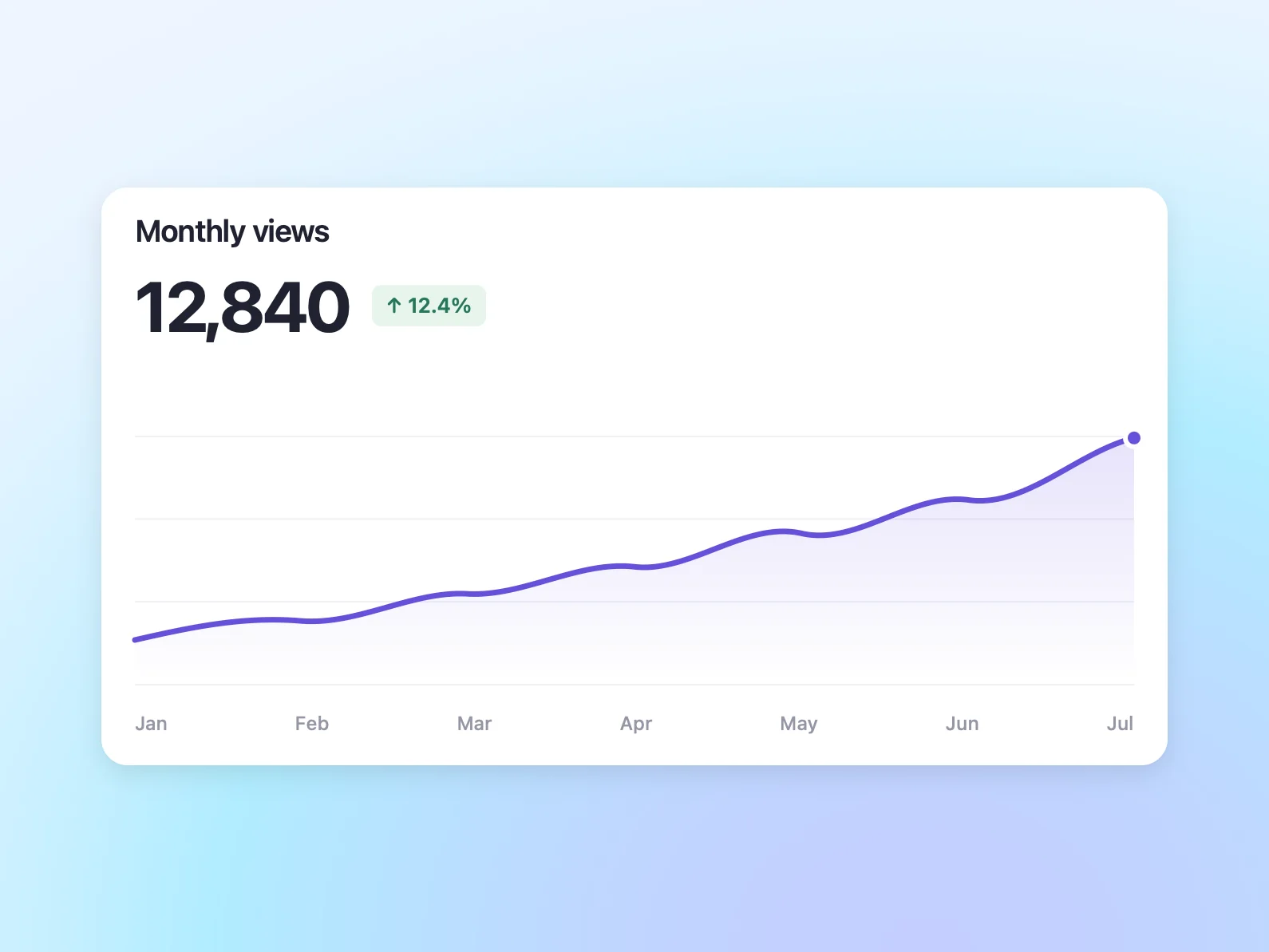
Use the same backgrounds for screenshots and recordings, so slides, docs and posts look like they belong together.
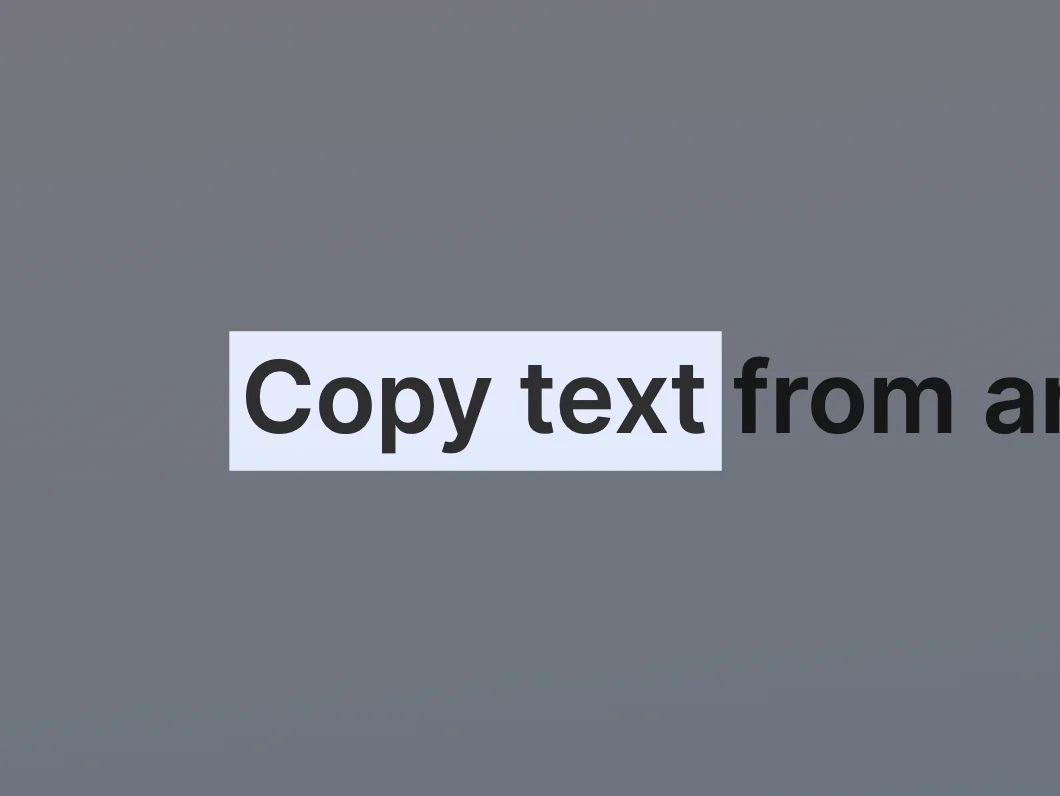
Grab text or a QR code from the screen or an image, without typing it out.
Make the cursor bigger and smoother after recording, and add a ripple on every click.
Yes. Choose a display, a single window or an area before you start. A window recording follows the window if you move or resize it.
Yes. Microphone and system audio are recorded as separate tracks, and you can turn each one down or mute it in the editor.
MP4 works almost everywhere, from websites to social posts. ProRes is for further editing in a video app. GIF is for short loops in changelogs, docs and chats.
palmscreen doesn't upload anything or create share links. You export a file and share it wherever you like.